
Helix Stadium 1.2.1 (released January 20, 2026) includes important bug fixes and stability improvements and is strongly recommended for all Helix Stadium users. IMPORTANT! Please read Bug Fixes in 1.2/1.2.1 below!
Helix Stadium 1.2 (released December 17, 2025) includes 7 new Agoura amp channels from 3 new amps, the new Showcase playback and automation engine, and numerous improvements and bug fixes and is strongly recommended for all Helix Stadium users.
IMPORTANT! As always, YOU MUST ALSO install the latest version of the Helix Stadium app, available here:
- macOS: https://line6.com/software/readeula.html?rid=13434
- Windows: https://line6.com/software/readeula.html?rid=13433
New Amps in 1.2
7 new Agoura amp channels bring the Agoura channel count to 50. If you count the 111 HX channels (and you should), that's 161 amp channels total.
Amp > US Super Black (Normal and Vibrato channels), based on* the Fender® Super Reverb®
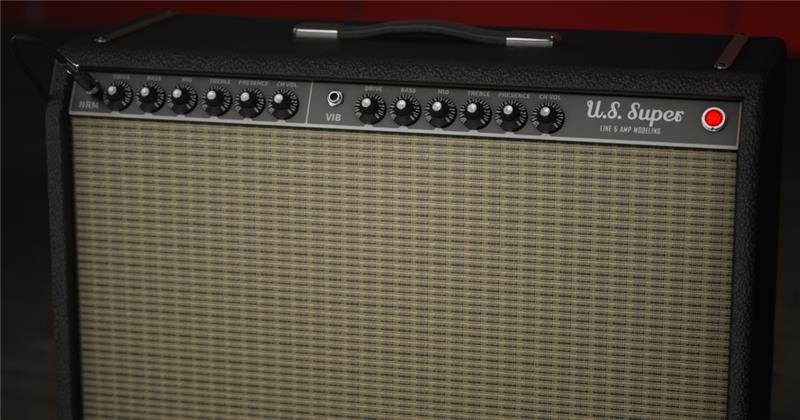
- Channel—Selects the amp channel or which input is connected. Choose "Normal" or "Vibrato."
- Drive—Controls the amount of gain applied to the signal, which influences the level of distortion.
- Bright—When this switch is on, applies a high frequency boost.
- Bass—Controls the low frequency EQ of the tonestack.
- Mid—Controls the midrange frequency EQ of the tonestack.
- Treble—Controls the high frequency EQ of the tonestack.
- Master—Controls the Master Volume of the amplifier.
- Level—Controls the overall level of the Amp block. Unlike Master Volume, it has no effect on the block's tone.
- Sag—Controls the amount of sag, or how much the power supply compresses or "droops" in response to striking the strings hard. Higher values provide more touch dynamics, sustain, and organic feel that's inherent in vintage tube amps; lower values offer a "tighter" responsiveness for a more modern feel.
- Ripple—Controls how much AC ripple interacts with your tone. Power amp circuits will sometimes let a little bit of rectified 120Hz hum (that the power supply filter caps can't quite fully remove) into the audio signal when the power supply is being pushed hard. Much like Hum, Ripple provides a bit of non-musical distortion to the power amp at distorted settings.
- Z Pre Post—Determines the location of speaker impedance characteristics in the power amp, primarily due to negative feedback. Higher values mean the effects of the interaction appear at the output of the power amp (Post) and lower values mean more of the effect is fed back to the input of the power amp (Pre).
- Hype—Depending on the amp and/or amp settings, increasing Hype may subtly or dramatically adjust various behind-the-scenes parameters to make the amp sound and feel smoother, fuller, punchier, tighter, and/or more forgiving, but at the expense of accuracy.
Amp > Cali 2C+ (Normal and Lead channels), based on* the MESA/Boogie® Mark IIC+
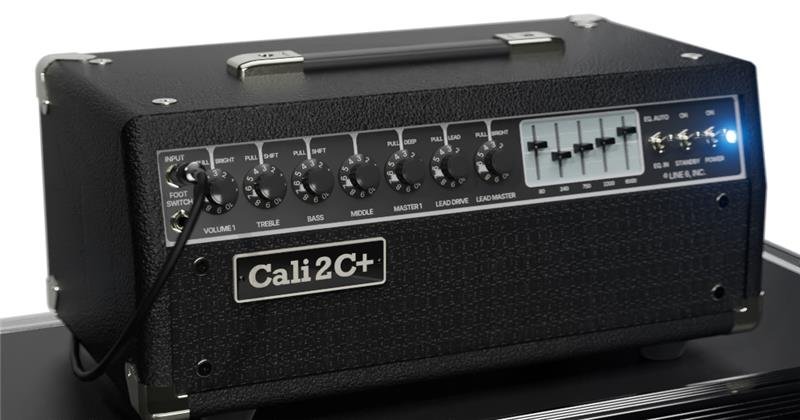
- Channel—Selects the amp's channel. Choose "Normal" or "Lead."
- Drive—Controls the amount of gain applied to the signal, which influences the level of distortion. This parameter affects both Normal and Lead channels.
- Bright—When this switch is on, applies a high frequency boost.
- Bass—Controls the low frequency EQ of the tonestack.
- Mid—Controls the midrange frequency EQ of the tonestack.
- Treble—Controls the high frequency EQ of the tonestack.
- Presence—Boosts upper mid and high frequencies in the power amp, resulting in additional punch and bite.
- Deep—When this switch is on, boosts the bass frequencies before the graphic EQ.
- Level—Controls the overall level of the Amp block. Unlike Master Volume, it has no effect on the block's tone.
- BassShift—When this switch is on, boosts the bass frequencies at the first gain stage.
- TrebShift—When this switch is on, shifts the treble frequencies of the tone stack lower.
- Bright—When this switch is on, applies a high frequency boost. This parameter interacts with the Drive parameter and affects both Normal and Lead channels.
- LeadDrive—Controls the amount of gain applied to the signal, which influences the level of the distortion in the Lead channel.
- LeadBrite—When this switch is on, applies a high frequency boost. This parameter interacts with the LeadDrive parameter and affects only the Lead channel.
- LeadMaster—Controls the Master Volume of the Lead channel of the amplifier.
- Master—Controls the Master Volume of the amplifier. This parameter affects both Normal and Lead channels.
- Power—Selects the topology of the power amp. Choose "Class A" or "Simulclass"
- Graphic EQ (80 Hz, 240 Hz, 750 Hz, 2200 Hz, 6600 Hz)—The amount of boost and cut is not equal for all bands. This is consistent with the real amp.
- Sag—Controls the amount of sag, or how much the power supply compresses or "droops" in response to striking the strings hard. Higher values provide more touch dynamics, sustain, and organic feel that's inherent in vintage tube amps; lower values offer a "tighter" responsiveness for a more modern feel.
- Ripple—Controls how much AC ripple interacts with your tone. Power amp circuits will sometimes let a little bit of rectified 120Hz hum (that the power supply filter caps can't quite fully remove) into the audio signal when the power supply is being pushed hard. Much like Hum, Ripple provides a bit of non-musical distortion to the power amp at distorted settings.
- Z Pre Post—Determines the location of speaker impedance characteristics in the power amp, primarily due to negative feedback. Higher values mean the effects of the interaction appear at the output of the power amp (Post) and lower values mean more of the effect is fed back to the input of the power amp (Pre).
- Hype—Depending on the amp and/or amp settings, increasing Hype may subtly or dramatically adjust various behind-the-scenes parameters to make the amp sound and feel smoother, fuller, punchier, tighter, and/or more forgiving, but at the expense of accuracy.
Amp > Brit Jujube (Rhythm, Rhythm Clip, and Lead channels), based on* the Marshall® Silver Jubilee (2555X)
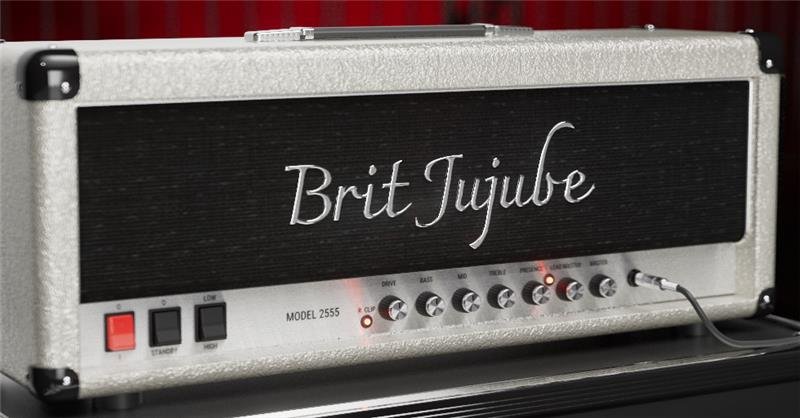
- Channel—Selects the amp's channel. Choose "Rhythm," "Rhythm Clip," or "Lead."
- Drive—Controls the amount of gain applied to the signal, which influences the level of distortion.
- Bass—Controls the low frequency EQ of the tonestack.
- Mid—Controls the midrange frequency EQ of the tonestack.
- Treble—Controls the high frequency EQ of the tonestack.
- Presence—Boosts upper mid and high frequencies in the power amp, resulting in additional punch and bite.
- LeadMaster—Controls the gain level of the Lead channel. This level is after the Drive control and before the Master Volume.
- Level—Controls the overall level of the Amp block. Unlike Master Volume, it has no effect on the block's tone.
- Master—Controls the Master Volume of the amplifier.
- Sag—Controls the amount of sag, or how much the power supply compresses or "droops" in response to striking the strings hard. Higher values provide more touch dynamics, sustain, and organic feel that's inherent in vintage tube amps; lower values offer a "tighter" responsiveness for a more modern feel.
- Ripple—Controls how much AC ripple interacts with your tone. Power amp circuits will sometimes let a little bit of rectified 120Hz hum (that the power supply filter caps can't quite fully remove) into the audio signal when the power supply is being pushed hard. Much like Hum, Ripple provides a bit of non-musical distortion to the power amp at distorted settings.
- Z Pre Post—Determines the location of speaker impedance characteristics in the power amp, primarily due to negative feedback. Higher values mean the effects of the interaction appear at the output of the power amp (Post) and lower values mean more of the effect is fed back to the input of the power amp (Pre).
- Hype—Depending on the amp and/or amp settings, increasing Hype may subtly or dramatically adjust various behind-the-scenes parameters to make the amp sound and feel smoother, fuller, punchier, tighter, and/or more forgiving, but at the expense of accuracy.
*NOTE: All product names used in this document are trademarks of their respective owners and neither Yamaha Guitar Group nor Line 6 are associated or affiliated with them. These trademarks appear solely to identify products whose tones and sounds were studied by Line 6 during sound model development.
New Features in 1.2
Showcase
1.2 introduces Phase 1 of Line 6’s all new ShowcaseTM live automation engine (patents pending). Controlling a single guitar or bass rig is so 2015; Helix Stadium can now act as the centerpiece of the entire stage, with automated preset and snapshot recall, automated looper functions, automated MIDI remote control and tempo sync of everything on stage, MIDI, hotkey, or SMPTE audio track-to-video/lighting, and up to eight stereo tracks of audio playback. It’s like having a guitar tech, bass tech, keyboard tech, playback tech, video tech, and lighting tech at your beck and call. Showcase helps your band or solo act turn smaller gigs or livestreams into engaging, buzzworthy events and keeps you focused on playing instead of tap dancing on switches all night.
IMPORTANT! Showcase won’t change your strings or chip in for beer.

Although it sounds complex, Showcase—at least in 1.2—is quite simple. It consists of three basic concepts:
- 8-track song player—Songs with 1 to 8 stereo audio tracks can be transferred to Helix Stadium via Wi-Fi from the Helix Stadium app. Song tracks can be mixed differently for the 1/4", XLR, and Phones outputs from the Matrix mixer.
-
Event sequencer (Flags)—One or more events (called flags) can be dragged onto a song's timeline, which tell Helix Stadium (and/or external devices) to accomplish certain tasks, such as recalling a preset or snapshot, engaging a looper function, controlling external stompboxes and synths, switching your real amp's channel, controlling software, and much more. Think of flags like commands from the Command Center screen, except instead of engaged manually, they're triggered automatically at certain points during a song. Collectively, these flags can be used to automate your entire show.
- Start—Every song has one Start flag at the very beginning that determines the song's time signature and tempo. The Start flag also has the ability to recall a specific preset and snapshot.
- End—Every song has one End flag at the very end that determines the song's end location, fade out length (if any), and playback behavior for when the song ends. Moving its location trims the end time of the song.
- Marker—Used to jump to various locations in a song and for rearranging your song on the fly during performance. The flag top on the Song screen displays a small yellow pause icon when its Pause at Marker is set to "On". As with Start flags, Marker flags can also recall a specific preset and snapshot.
- Cycle—Cycles a section of the song for repeated jamming. Cycle Start and End points can also be entered in real time by pressing Transport mode's Cycle footswitch.
- Preset/Snap—Used to automatically switch presets and/or snapshots during a song. Note that Start flags and Markers can also recall presets and/or snapshots, so these may be unnecessary.
- Looper—Used to automate looper functions within Helix Stadium itself. For example, you could place a Looper > Record flag at the beginning of the first chorus, a Looper > Stop flag at the end of the chorus, and a Looper > Play flag at the beginning of the second chorus. Playing the song will automate these functions so you could harmonize with what you played in the first chorus durning the second chorus, without pressing a single footswitch.
- Utility—A catch-all for additional functions that allow Helix Stadium to control itself, including turning the click on and off, engaging the tuner, starting and stopping the stopwatch, and more.
- Ext Amp—Used to automatically switch external amps' channels and/or reverb. Same as Ext Amp commands except they happen automatically.
- MIDI—Transmits a MIDI message from both MIDI DIN and USB. Currently supports Bank/Program, CC, and MMC messages. Can be used to recall presets and control parameters in your external stompboxes, synths, keyboards, or with a MIDI-to-DMX converter, even lighting.
- Hotkey—Transmits a QWERTY HID command (with or without modifiers, such as Shift, Alt, and Command) via USB. Basically the same thing as a Hotkey message on the Command Center page, except it's automatically sent during song playback. Can be used to start/stop a Quicktime video, advance Powerpoint slides, or if you're really ambitious and bored, type an angry email to your boss.
- Time—Each song's Start flag determines the song's initial tempo and time signature, but additional Time flags can be added anytime the song's tempo and/or time signature changes.
- Playlists—Much like in Spotify or Apple music, one or more songs can be organized into playlists, and then recalled and otherwise navigated from Transport footswitch mode, dedicated Transport buttons below the Volume knob, or the Song screen's Transport panel. Helix Stadium can store up to 512 songs in the Song Library folder (determined by song length, number of tracks, and microSD card size), and up to 127 playlists can be created, each containing up to 128 songs from the Song Library folder.
For more information on Showcase, see the Helix Stadium Owner's Manual.
Bug Fixes in 1.2/1.2.1
-
1.2.1—In some cases, recalling snapshots could not correctly recall all block bypass and/or parameter change values—FIXED IMPORTANT! For presets made before 1.2.1, if a specific block bypass or parameter change continues to not recall as expected:
- Block Bypass: Tap the block and toggle Snapshot Bypass off and then on again (On [default] means the block's bypass state is controlled by snapshots)

-
- Parameter Change: Tap the parameter in the inspector and in the sidebar, tap Snapshot Ctrl off and then on again
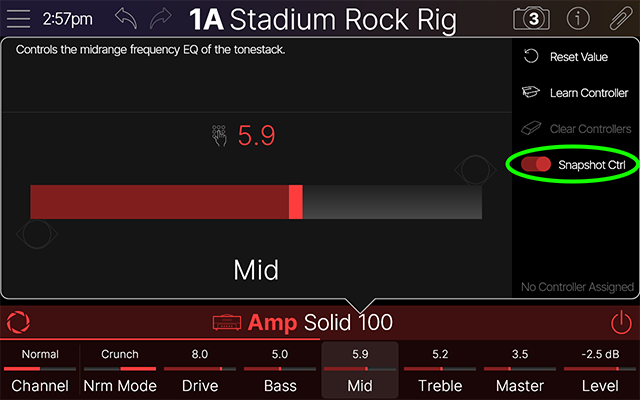
- 1.2.1—Snapshot switching time has improved significantly in 1.2.1
- 1.2.1—Switching snapshots could result in volume spikes, jumps, or dips. 1.2.1 improves this considerably and further improvements are coming in 1.3
- 1.2.1—Global EQ settings could not be retained after a firmware update—FIXED IMPORTANT! As this fix applies to 1.2.1 and later, you will need to reprogram your Global EQ(s) after updating. Subsequent updates will not require this
- 1.2.1—Opening and closing the Global EQ screen could cause the parameters to appear to have been reset, even though they were still active—FIXED
- 1.2.1—After a power cycle, individual Global EQ bands could sometimes not process audio correctly—FIXED
- 1.2.1—When not logged into one's account, attempting to update the firmware can display an "Error -16" message—FIXED, but as this was added with 1.2.1, it won't be apparent until subsequent updates
- 1.2.1—Several Hotkey flag > Keystroke values were incorrect. Setting the value to "-" was actually a space bar, and subsequent values were off by 1—FIXED
- 1.2.1—On rare occasions, the display could continually restart, requiring a reboot—FIXED
- 1.2.1—IRs could incorrectly load when more than one was used on a path—FIXED
- 1.2.1—Global Settings > MIDI > Send PC w/ Preset setting would also affect Command Center MIDI commands and a song's MIDI flags—FIXED
- 1.2.1—When the Learn Assignment panel open, touching a command-assigned stomp switch could cause the touchscreen to reboot—FIXED
- 1.2.1—In certain cases, setting a Cab block to "No Cab" could cause the touchscreen to reboot—FIXED
- 1.2.1—Double-tapping the second cab icon could sometimes change the first cab—FIXED
- 1.2.1—Clearing a controller could remove visual indication of snapshot control, even though it still worked—FIXED
- 1.2.1—Changing Global Settings > Displays > TAP LED to "Off" would make the TAP LED stop blinking but it could remain on—FIXED
- 1.2.1—Depending on pedal position, one or more expression pedal-assigned blocks' bypass states could become inverted—FIXED
- 1.2.1—A stomp switch may not behave as expected when assigned to toggle between multiple parameters' min and max values—FIXED
- 1.2.1—Once Stomp A footswitch mode is filled, a block auto-assigned to Stomp B mode could affect that same switch's assignment in Stomp A mode—FIXED
- 1.2.1—If a user isn't logged in, attempting to access Menu > Downloads results in an error message—FIXED
- 1.2.1—Importing longer WAV files (example: convolution reverb impulses) as Cab IRs could cause the unit to freeze on the splash screen—FIXED
- 1.2.1—Clearing a command could lead to loss of snapshot control of block bypass states—FIXED
- 1.2.1—Connecting to certain types of products over S/PDIF could result in minor pops and clicks—FIXED
- 1.2.1—Focus zone defaults for Amp > Cali 2C+ have been improved
- 1.2.1—Many other fixes and stability improvements
- Helix Stadium App 1.2.1—In some cases, block bypass state could become out of sync with hardware or snapshot changes—FIXED
- Helix Stadium App 1.2.1—In some cases, block bypass state could become out of sync when three or more blocks are assigned to the same Stomp A or Stomp B switch—FIXED
- Helix Stadium App 1.2.1—After swapping snapshots,visual indication was updated only after relaunching the software—FIXED
- Helix Stadium App 1.2.1—After adding multiple songs, memory usage could increase dramatically—FIXED
- Helix Stadium App 1.2.1—In some cases, block bypass state could become out of sync with hardware—FIXED
- Helix Stadium App 1.2.1—In rare cases, if a stomp was assigned to Ext Amp (with snapshot control on), cycling snapshots could cause a crash—FIXED
- Helix Stadium App 1.2.1—Many other fixes and stability improvements
- Helix Stadium App 1.2.1 (Windows only)—Installing the Helix Stadium App 1.2.1 for Windows bundles the latest ASIO driver that adds support for DirectSound and WDM (WASAPI) drivers. Previously, Audacity could fail to record properly—FIXED
- 1.2—In some cases, Global Settings > Ins/Outs > 1/4" Output Level and XLR Output Level would appear set to "Line" but were actually outputting Instrument/Mic level—FIXED
- 1.2—Global Settings > Ins/Outs > Mic In Gain was set lower than intended under the hood—FIXED IMPORTANT! Manual adjustment is required for the fix to take effect. Be careful as this will result in the level increasing
- 1.2—Presets could occasionally load at a lower output level than expected—FIXED
- 1.2—In some cases, enabling snapshot control of parameters and then adjusting them from Focus view would not be recalled correctly by Snapshots—FIXED
- 1.2—With some presets imported from Helix/HX, changing snapshots could cause the main LCD to reboot—FIXED
- 1.2—In some situations, main LCD and scribble strip displaying of tempo could be inconsistent—FIXED
- 1.2—If a Looper block is auto-assigned to a Stomp switch, it can become unresponsive—FIXED
- 1.2—Overwriting a preset can append "(1)" to the preset name—FIXED
- 1.2—In certain cases, assigning a MIDI CC to an expression pedal via the Command Center could cause the screen to reboot—FIXED
- Helix Stadium App 1.2—In rare cases, selecting models from the editor could exceed DSP limits, risking a crash—FIXED
- Helix Stadium App 1.2—None block could show editable parameters—FIXED
- Helix Stadium App 1.2—Adjusting Input > Instrument 1+2 and Inst 2 > Input Z value would not update the hardware—FIXED
- Helix Stadium App 1.2—Exporting a preset and then re-importing it could sometimes fail to correctly recall which block is selected—FIXED
- Helix Stadium App 1.2—When assigned from the editor, some snapshot bypass assignments are not always recalled—FIXED
- Helix Stadium App 1.2—In rare cases, when importing various presets from Helix/HX, blocks' snapshot bypass state was not always recalled correctly—FIXED
- Helix Stadium App 1.2—When duplicating a large number of setlists in the editor, an error could occur—FIXED
- Helix Stadium App 1.2—We have addressed some issues that could prevent logging in to the Helix Stadium application
Known Issues in 1.2.1
- Wi-Fi connection appears established on the device but is not actually connected to the internet. In this case, disconnect and reconnect to the network on Stadium to reestablish connection
- In some environments, the Helix Stadium application can become disconnected from the hardware
- After sitting for an extended period of time, the DSP may become unresponsive. Power-cycling restores functionality so for now, restart Helix Stadium between each session
- After importing many IRs, the next time Helix Stadium is turned on, boot time is much slower. Subsequent power ups boot as normal.
- The click may briefly appear out of sync when beginning song playback
- If Marker > Pause at Marker is turned on, any preset and/or snapshot assigned to the marker is recalled, even though it shouldn't until Play is engaged
- If Showcase Start or Time flags have time signatures with an 8 or 16 denominator, the click may appear uneven
- On the Song screen, Visual position may unexpectedly go out of range when zooming or adjusting marker position
- Helix Stadium app—The following Edit Menu key commands/shortcuts are not yet implemented: Undo, Redo, Cut, Copy, Paste
- Helix Stadium app—Editing Global EQ from the editor may not be reflected visually on the hardware's Global EQ screen